
Install the app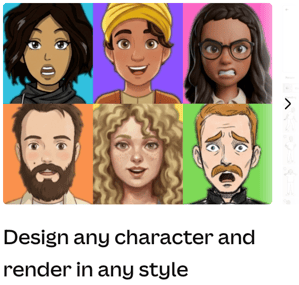
-
Open a design in Canva
-
Click Apps in the main toolbar
-
Search for Pixton
-
Select Pixton Characters
- Click Open
When you open the app you’ll see sections to:
-
Create a character
-
Explore example images
Explore example images
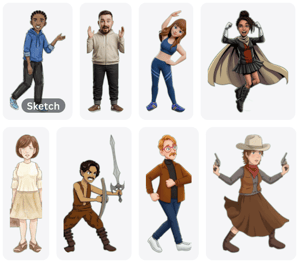 Each example represents one of the art styles available
-
Click on an example to see it in more detail, or drag it to insert it into your Canva document
-
In the detailed view, you can:
-
Click on the image to insert it
-
Click the Next style and Previous style (arrow) buttons to step through the various examples
-
Create a character
-
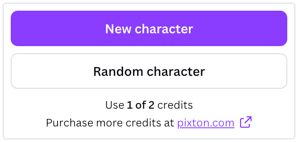
New character - click to create a new character from scratch
-
Random character - click to create a new character, starting with a set of randomly selected attributes
-
It costs one credit every time you create a new character
Create a character from scratch
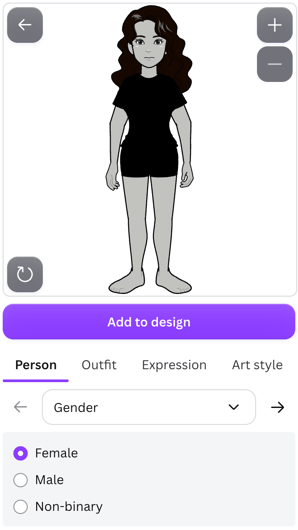 Click New character
-
An adult female character is created by default
-
Below the character are four tabs:
- Person - attributes that define the character’s identity / more permanent attributes
- Outfit - attributes that define what the character is wearing or holding
- Expression - attributes that define what the character is feeling / doing
- Art style - a range of art styles to choose from
- Use the Previous section and Next section (arrow) buttons to step through the available attributes
- Use the drop-down menu to jump to a specific attribute within the selected tab
At any time, you may drag the Pixton character image directly into your Canva document to insert it in SVG (vector) format.
Keyword chips
-
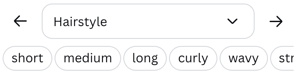 In the Hairstyle section, a set of keyword chips are included to help you navigate the range of options available
Search
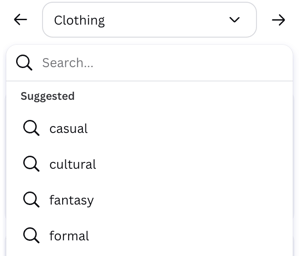 In the Clothing, Prop, Face, and Body sections, a search input is included
- When you click on the search input, a list of suggested searches is included
- The search function works with any input language
Create a random character
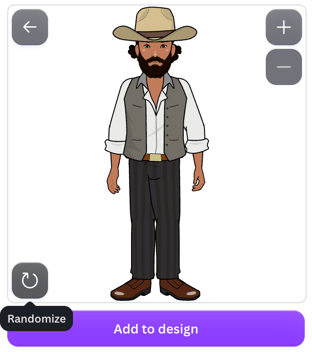 This function is provided as a way for you to quickly grasp the variety of options available, or to give you an arbitrary starting point if that’s helpful
- The Randomize button re-randomizes the character
Character functions
When editing a character, the following buttons are visible around the character image:
- Back to your characters (arrow, top left) - returns to the home view
- Undo / Redo (bottom left) - steps through previous changes made to the character; resets upon navigating back to your list of characters
- Zoom in / Zoom out (bottom right) - zooms in or out of the character; this does not affect what is captured when applying an art style, nor when inserting the Pixton character directly into your Canva document
- Character actions:
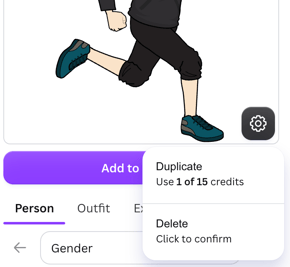
- Duplicate - makes a copy of the selected character
- Delete - deletes the character, but only if the SHIFT button is pressed when clicking, as it cannot be undone
- Randomize (bottom left) - visible when initially creating a random character
Save your favorites
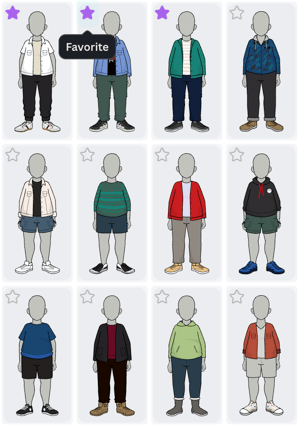 Some sections include a favoriting function
- Click on the star (if available) to save an item to your favorites
- Favorites will appear at the top of the list when browsing
- Click a star again to remove that item from your favorites
Choose an art style
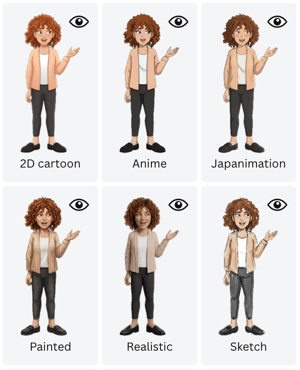 There are currently nine art styles available:
- 2D cartoon - soft, polished, expressive
- Anime - clean, sharp, cel-shaded
- Japanimation - warm, soft, naturalistic hand-painted
- Painted - textured, brushstroke-rich fine art
- Realistic - photorealistic with detailed textures
- Sketch - loose, expressive sketch with solid fills
- 3D cartoon - stylized, polished, cinematic
- Heroic - bold, dynamic, high-contrast
- Watercolor - soft, translucent, fluid painted
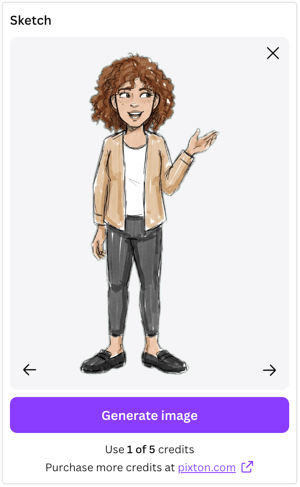 Click the Zoom in button to see the provided example in more detail
- When zoomed in, use the Previous style and Next style (arrow) buttons to step through the available styles, or click the View all styles (X) button to zoom out
Generate an image
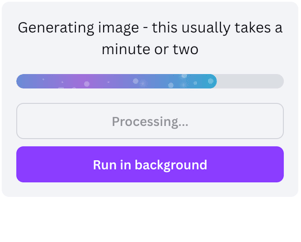 Once you’ve selected an art style, click Generate image to render the character in that style
- It costs one credit every time you generate an image in an art style
- Before the image starts being processed, you may click Cancel to cancel it and get your credit back
- You may at any time click Run in background to return to the character editor and view the rendered image later
View previously generated images
-
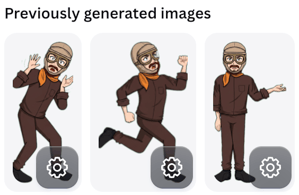 Click on a character in your list and scroll down to see any previously generated images.
 - If you wish to delete a previously generated image, you may do so by holding down SHIFT as you click Actions (cog) and then Delete
Restore previous character settings
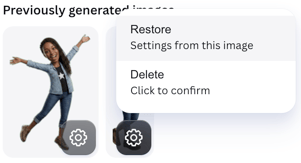 You may restore the state of a character at the time you generated an image:
- Click Actions (cog) on the previously generated image
- If available, click Restore
- Note that this will permanently overwrite the current state of your character
Insert an image
To insert an image into your Canva design, simply click on it, or drag it into the document.
Buy more credits
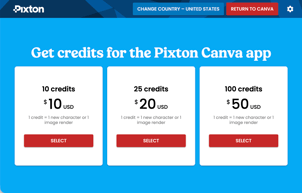 Click the link provided, to go to the main Pixton web app
- Click Change country if the country shown is not accurate
- Select a credit bundle
- Enter your payment information
- Click Submit payment
Upon successful payment:
-
Click Okay
-
You may download your receipt
-
Click Return to Canva to close the window and return to the Pixton app in Canva
- Once back in Canva, click Refresh to reload your credit balance